Option chain
AOC Settings: Option Chain Columns, Font and Layout
Settings in AOC is one dialog that controls how the option chain looks and behaves: columns, number format, highlights, font, split-screen chart, trading defaults and more. Every change applies the moment you make it, and you can save the whole set to your account to use it on another device.
On this page
Where do I find Settings?
Two places: Settings in the App section of the side menu, and the tune icon in the strip below the last strike of the live option chain. There is a search box at the top: type "watermark" or "lots" and only matching rows stay.
Changes save in this browser instantly and a small toast confirms each one. There is no Apply button for the main list.
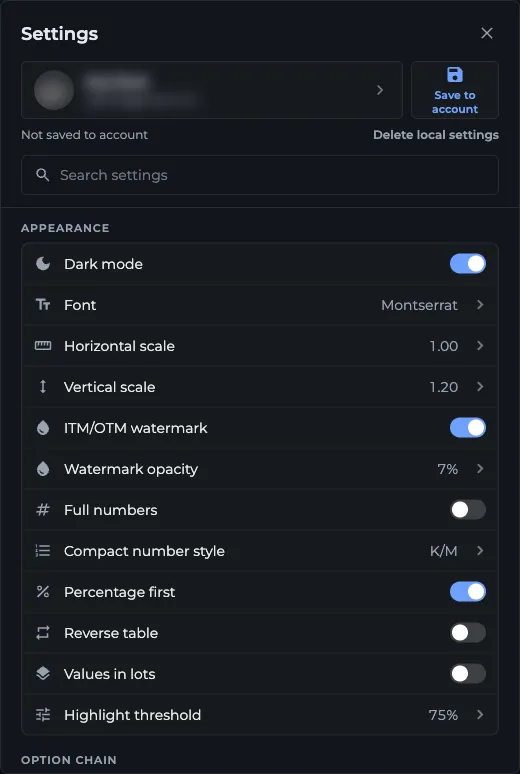
- 1Save to account
- 2Last saved status
- 3Search box filters the settings
- 4Appearance group of settings
How do I reorder or hide option chain columns?
Open Columns in the Option chain group. It shows how many of the six columns are visible, "5 of 6" by default.
- Look at the preview strip at the top: it shows the header in the order you are building.
- Under Sides, drag Calls (CE), Strike and Puts (PE) by the grip handle into any order. Puts on the left and calls on the right is fine; the S/R labels and ITM shading follow.
- Under Shown, drag the columns into the order you want, reading from the outer edge towards the strike. A side on the right of the strike is mirrored automatically.
- Tap the eye icon to hide a column. At least two columns must stay.
- Under Hidden, tap the eye to bring a column back. Reversal price lives here by default.
- Tap Done. Reset goes back to the default five columns and CE, Strike, PE.
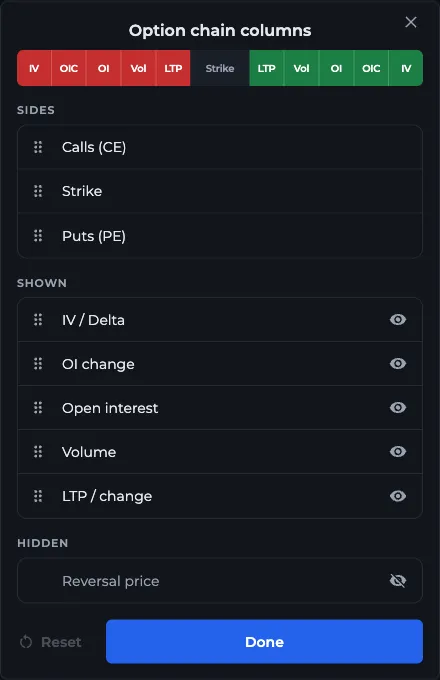
- 1Preview strip of the header
- 2Sides: drag Calls, Strike, Puts
- 3Eye icon hides a column
- 4Hidden: Reversal price
- 5Tap Done to apply
What can I change in Appearance?
- Dark mode: dark or light theme
- Font: the option chain font, Montserrat by default, or Inter, Roboto, Poppins and JetBrains Mono, each also in a Bold version. Only the chain changes; the rest of the app keeps its font
- Horizontal scale (chain width) and Vertical scale (text size), 0.50 to 2.50; defaults 1.00 and 1.20
- ITM/OTM watermark: large faint ITM and OTM words across each quarter of the chain, starting two rows away from the spot bar. Off by default
- Watermark opacity: 2% to 30%, default 7%
- Full numbers and Compact number style (K/M or H/L/Cr)
- Percentage first: percentage on the top line of each cell (on by default)
- Reverse table: flips the row order (on by default, higher strikes at the top)
- Values in lots: OI and volume in lots instead of quantity
- Highlight threshold: when the faint yellow box appears, 25% to 95%, default 75%
What is in the Option chain, OI Charts and Split screen groups?
Option chain: AI mode, Default pricing (Spot Price or Future Price), Columns, COI % (adds OI change as a % of OI inside the OI Chg cell), Greeks table, Sticky stock notes (your stock note floats over the chain), Shifting updates (the SFT/SFB labels), Hide 3rd highest and Screener quick access (screener chains open in a popup instead of a new tab).
OI Charts and Multi OI: Remember last chart, or a Default chart tab to open first.
Split screen: Split screen on or off by default, Candle chart, Chart duration (Intraday or Expiry), Chart layout, Candle interval (1, 3, 5 or 15 min, default 3), Average S/R values and Chart first.
What do the Trading, Misc, Accessibility and Colors rows do?
Trading sets the defaults for Alice Blue orders: Enable trading, Order type (Regular, Bracket or Cover, default Bracket), Price type, Transaction type and Product. Bracket and Cover force MIS with a limit price. Details are on the Trading Panel page.
Misc has Server: leave it on Auto unless support asks you to pick one. Notifications opens your alert preferences.
Accessibility closes Settings and opens a floating panel over the chain, so you see changes live: both scales, Show borders, Border color, Border opacity and Border thickness. Colors lets you replace the red, green, yellow and other data colours, handy for colour-blind traders.
How do I save my settings to my account?
Settings live in this browser until you save them. Tap Save to account beside your profile card at the top of the dialog. Under it you then see Last saved with the IST time, or "Not saved to account" if you never did.
When you sign in on another device, AOC applies your account copy there if it is newer than what that device last used. The first time this happens, that device's own settings are kept aside as a backup. The server choice is never copied; it stays per device.
Delete next to Last saved removes the account copy and puts back the backup on this device. Delete local settings resets this device to the defaults but leaves the account copy alone, so you can pull it again with a fresh sign-in.
Frequently asked questions
How do I move the PE side to the left in the AOC option chain?
Open Settings, then Columns. Under Sides, drag Puts (PE) above Calls (CE), or into any order with Strike. The preview strip shows the result and the chain changes at once.
How do I show the reversal price column?
Open Settings, then Columns, and tap the eye next to Reversal price in the Hidden list. It appears as Rev LTP/Spot on both sides; drag it to where you want it.
Why did my option chain settings reset?
Settings are stored in the browser, so clearing site data, a private window or a new device starts from the defaults. Save them to your account from the top of Settings and they come back on your next sign-in.
Can I change the font size of the option chain?
Yes. Raise Vertical scale in Settings (or in the Accessibility panel) for bigger text and taller rows, and use Horizontal scale to make the chain wider. Font picks the typeface for the chain only.
Last updated