Charts and strategies
Paper Trading: Practise Option Orders on Past Market Data
Paper trading in AOC lets you place practice orders that behave like real broker orders, without sending anything to your broker. In the Strategy Simulator you trade on a replayed past session: orders wait, trigger and fill as the replay clock moves, and target and stop-loss close positions for you. The Strategy Builder uses the same paper order screen with live prices.
On this page
How do I place a paper trade?
- Open the Strategy Simulator and pick the symbol, expiry, date and time of the session you want to trade.
- In the option chain, tap a strike's LTP or volume cell (hover on a computer) and press B to buy or S to sell.
- The order screen opens with a PAPER badge. Choose the order type, product, quantity and price, then swipe to place the order.
- Move the replay forward with the step buttons or Play. Your order fills when the price reaches it, and the position appears in the legs table.
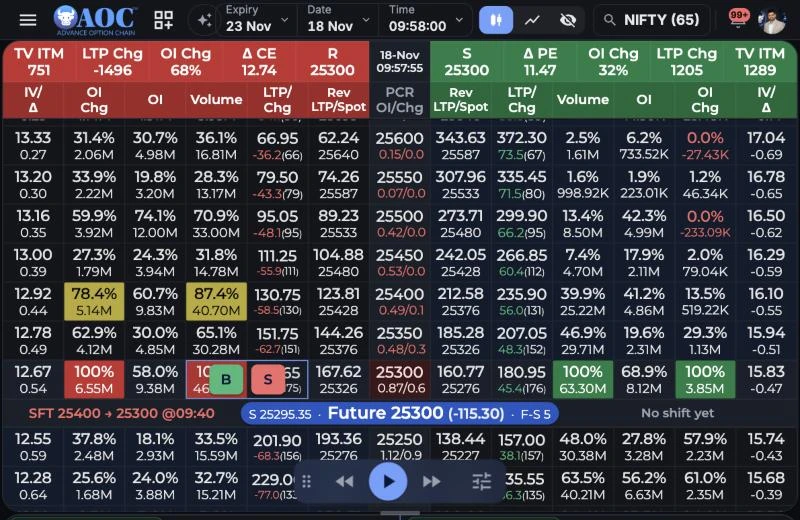
Tap a strike, then B or S to open the paper order screen.
- 1B and S on the strike you tapped
- 2Replay bar: step back, play, step forward
- 3Expiry, date and time of the session
What can I choose on the paper order screen?
It is the same order screen AOC uses for live broker orders, marked PAPER. Nothing on it reaches a broker.
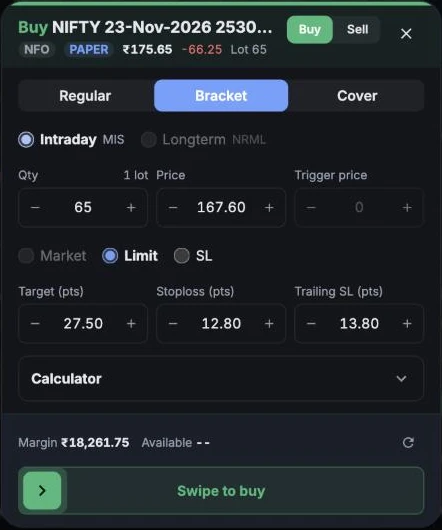
A bracket buy limit with target, stop-loss and trailing stop.
- 1PAPER: practice order, never sent to a broker
- 2Regular, Bracket or Cover
- 3Intraday (MIS) or Longterm (NRML)
- 4Limit price, prefilled with AOC's suggested entry
- 5Market, Limit or SL
- 6Target, stop-loss and trailing stop in points
- 7Margin the order needs
- 8Swipe to place the order
- Order variety: Regular, Bracket (BO: entry with target, stop-loss and an optional trailing stop) or Cover (CO: entry with a stop-loss only).
- Product: Intraday (MIS) or Longterm (NRML). Bracket and Cover orders are intraday only.
- Price type: Market, Limit or SL (stop-loss order with a trigger price).
- Quantity in units, one lot at a time.
- Margin: an estimate of what the order needs, from AOC's SPAN-style calculator on your open paper option legs plus this order.
The price box starts at AOC's suggested entry for that strike, which is often below the LTP for a buy. Change it, or pick Market, if you want to trade at the current price.
How do paper orders fill?
- Market: fills at once at the LTP of the snapshot you are on.
- Limit: a buy fills when the price falls to your limit or below, a sell when it rises to your limit or above. A limit the LTP already satisfies fills at once.
- SL: waits until the price crosses the trigger (above the LTP for a buy, below it for a sell), then works as a limit at your price.
- A filled order becomes a leg at its fill price. The entry price is then locked, as it is in a broker account.
- Intraday (MIS) orders still waiting at 15:20 IST are cancelled, and open MIS positions are squared off at the market price, as a broker does.
Where do I see orders that have not filled?
Waiting orders are listed above the legs table, for example BUY 25300 CE LMT 167.60 × 65 BO. Tap ✕ to cancel one. On a chart of the same contract the order shows as a BUY LMT or STP line with the target and stop-loss it will get, and you can drag those lines to change them before it fills.
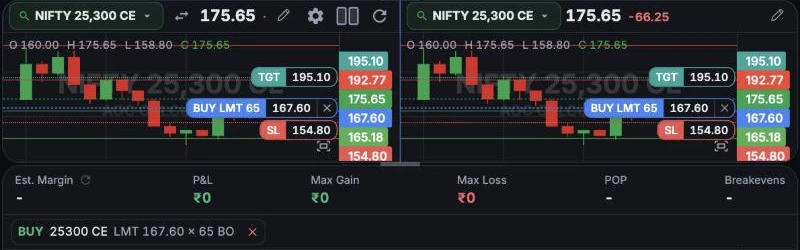
A waiting bracket order: chart lines and the order list above the legs.
- 1Waiting buy limit at 167.60
- 2Target it will get
- 3Stop-loss it will get
- 4Waiting orders, ✕ cancels
How do target and stop-loss work?
- Bracket: the target and stop-loss are set from the fill price by the points on the order screen. With a trailing SL, every time the price moves that many points further in your favour, the stop-loss moves up (or down, for a short) by the same amount.
- Cover: a stop-loss only, no target.
- Regular: AOC sets a target at the next support or resistance level beyond your entry and a stop-loss at half that distance (1:2 risk to reward).
- Drag the TGT or SL line on the chart to move it. A target must stay on the profit side of the entry and a stop-loss on the loss side.
- When the price reaches the target or stop-loss, the position closes at that snapshot's price and a message tells you which one was hit.
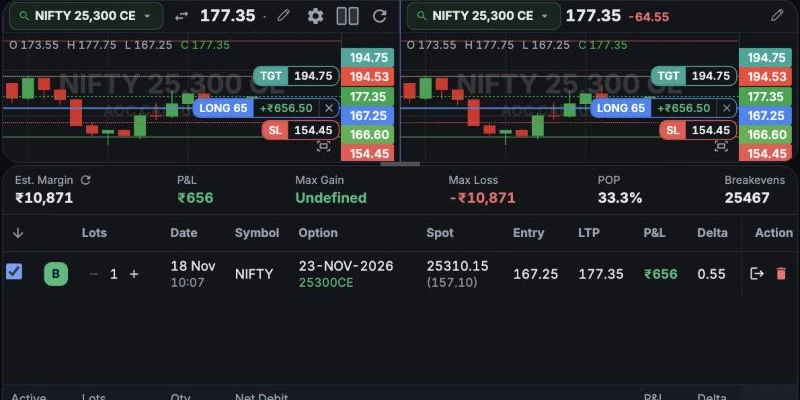
The limit filled at 10:07 during the replay: the position on the chart and in the legs.
- 1Open position with its P&L
- 2Entry is the fill price, locked
- 3Exit at the current price
Can I place orders from the chart?
Yes. Tap the chart at a price and press the + beside the price axis. Below the last price you get Buy limit and Sell stop, above it Sell limit and Buy stop, plus Buy market and Sell market at the LTP. Each opens the paper order screen with that price filled in.
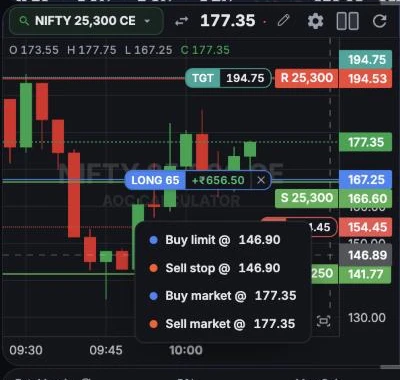
Chart order menu at a price below the LTP.
- 1Order types for the price you tapped
- 2Your open position
- 3Support and resistance levels used for Regular targets
Placing an order never switches your charts, so a Spot or Future chart stays where you put it. Pick a strike in any chart's selector to watch that contract.
Is paper trading the same in the Strategy Builder?
The order screen and fill rules are the same, but the Strategy Builder uses live prices instead of a replay. When you are logged in to AliceBlue, the margin comes from AliceBlue's own calculator, counting your open paper legs. Paper legs are separate from Save & Execute, which sends real orders to your broker.
Frequently asked questions
Why did my buy not appear in the legs?
It is waiting. A buy limit below the LTP only fills when the price falls to it, and the order screen starts at AOC's suggested entry, which is often below the LTP. Check the waiting orders above the legs, or choose Market to buy at once.
Does paper trading place real orders?
No. Orders placed on the PAPER order screen never reach a broker. Only Save & Execute in the live Strategy Builder sends real orders, through a linked AliceBlue account.
Can I change the entry price after an order fills?
No. As in a broker account, the entry is the fill price and is locked. You can still move the target and stop-loss, exit the position or delete the leg.
Are paper orders saved?
Yes. Waiting orders, targets and stop-losses are kept with your unsaved work on this device, and Save keeps the legs in your Strategy Portfolio.
Last updated